
The advent of cloud-based office suites like Google Docs, have changed the collaborative process of research writing. Google Docs allows you and your collaborators to work on the same document at the same time. No more sending versions of a document back and forth as each person works on a particular section, followed by a bunch of editing at the end to give the paper a cohesive voice.
Recently, Google added the “Research” tool to make reference management easier. To get started, create a new document in Google Docs, and select Tools/Research. A Research panel will appear to the right of your document as shown below.
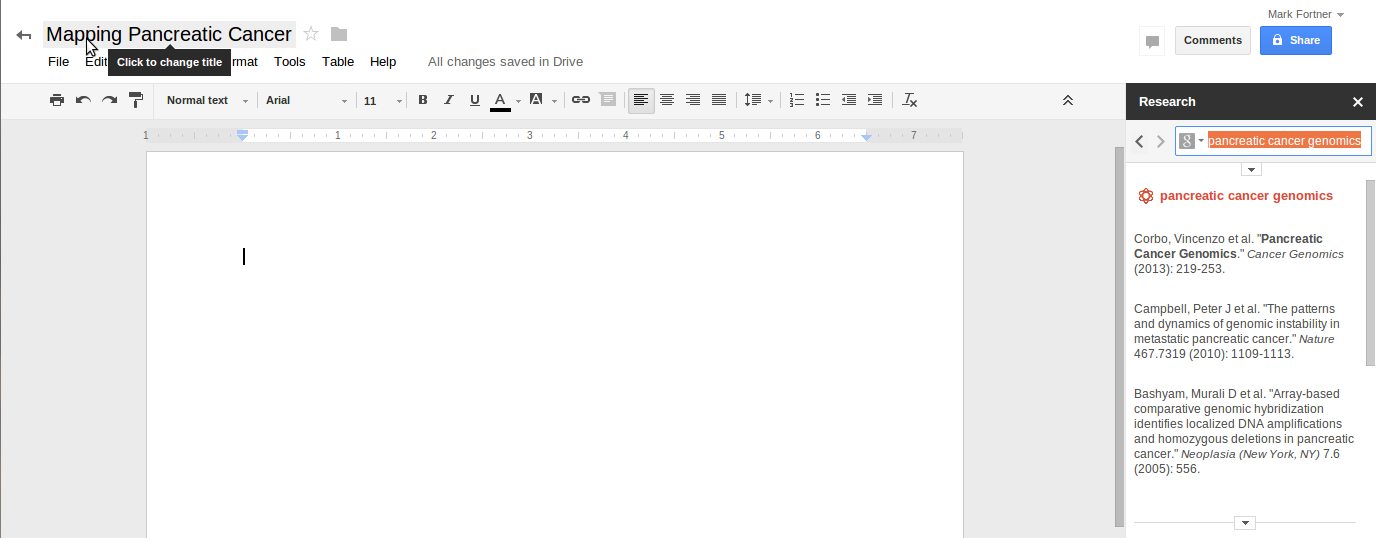
A search field at the top of the panel lets you search for assets (images, articles from Google Scholar, posts from your Google + account, quotations and dictionary words) to include in your article. In my case, I’m interested in adding citations on “pancreatic cancer genomics” to my paper, so I enter the search terms, select Google Scholar, and view the results.
As you hover over each search result, a link will appear that will take you to the original paper. You can insert the paper as a footnote, or insert the citation at your current cursor location. The citation can be formatted using MLA, APA, or Chicago Style formatting. No support yet for other citation formats like ACS. The only other fly in the ointment seems to be getting Google Docs to use end notes instead of footnotes. Which limits its usefulness when writing papers for publication.
On the other hand you can use the Research tool in Google Docs presentations as well as papers. Presentations will often include both a footnote at the bottom of a slide, if there is a quotation, or other citation on the slide, and the final slide will include the all of the References along with links to PubMed, or other websites. You still have to go through all of your slides and collect all of the references manually. It would be nice if all citations were tracked in the Google Docs Presentation, and automatically added to the final slide or to a designated “References” slide.
Lastly, I wanted to mention that you can use Google Docs to compose blog entries. In fact, I often find it easier to use than WordPress’s editor. Wordpress tries to provide similar functionality for finding useful additions (like images, and related articles) to blog postings but I often find the results too limiting, and the Research tool does a more comprehensive job of finding citations.